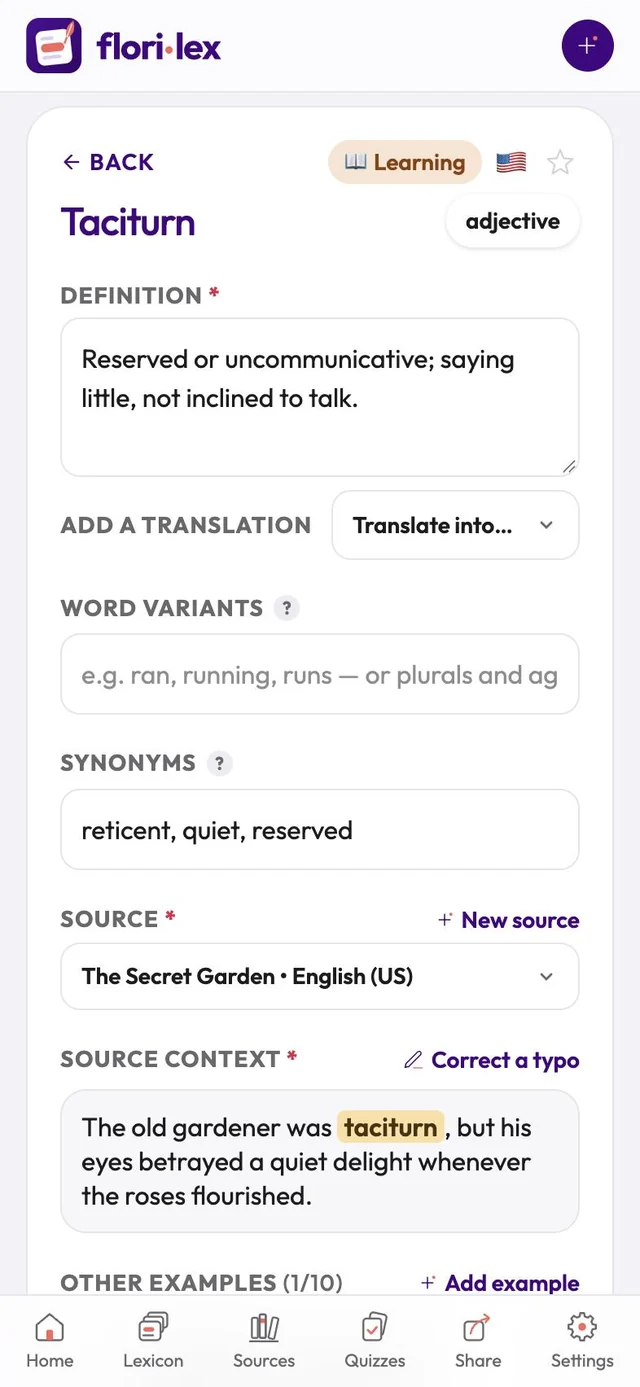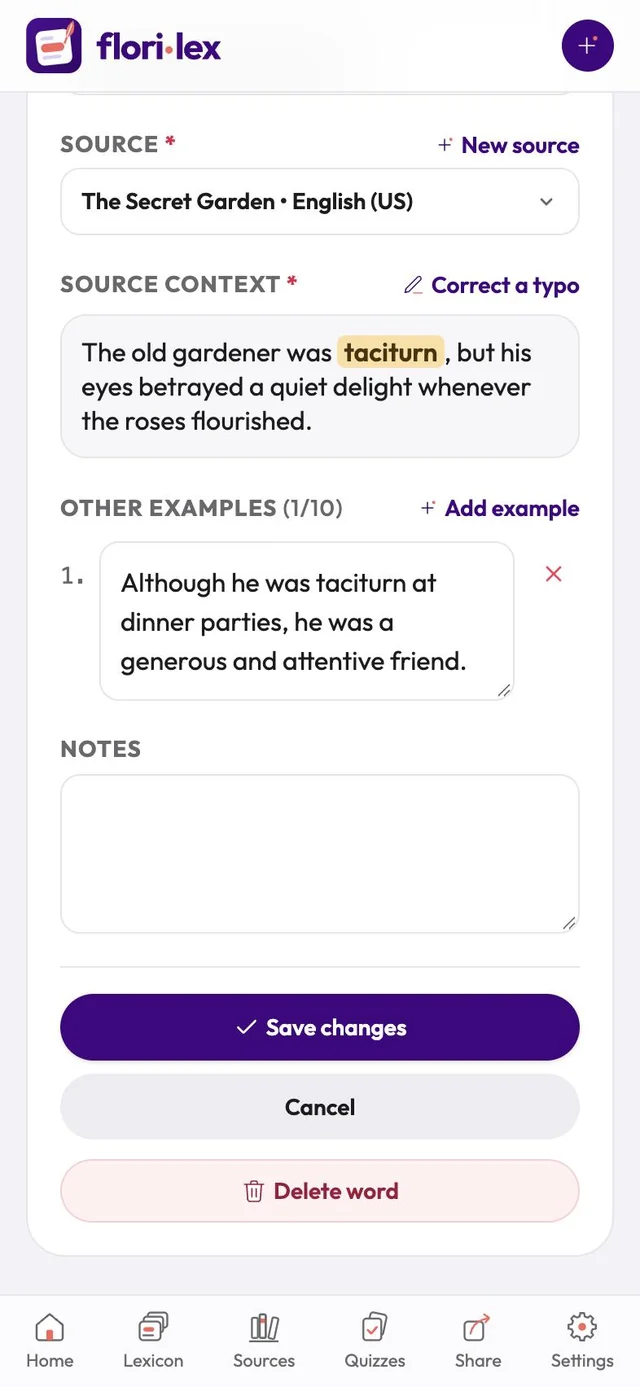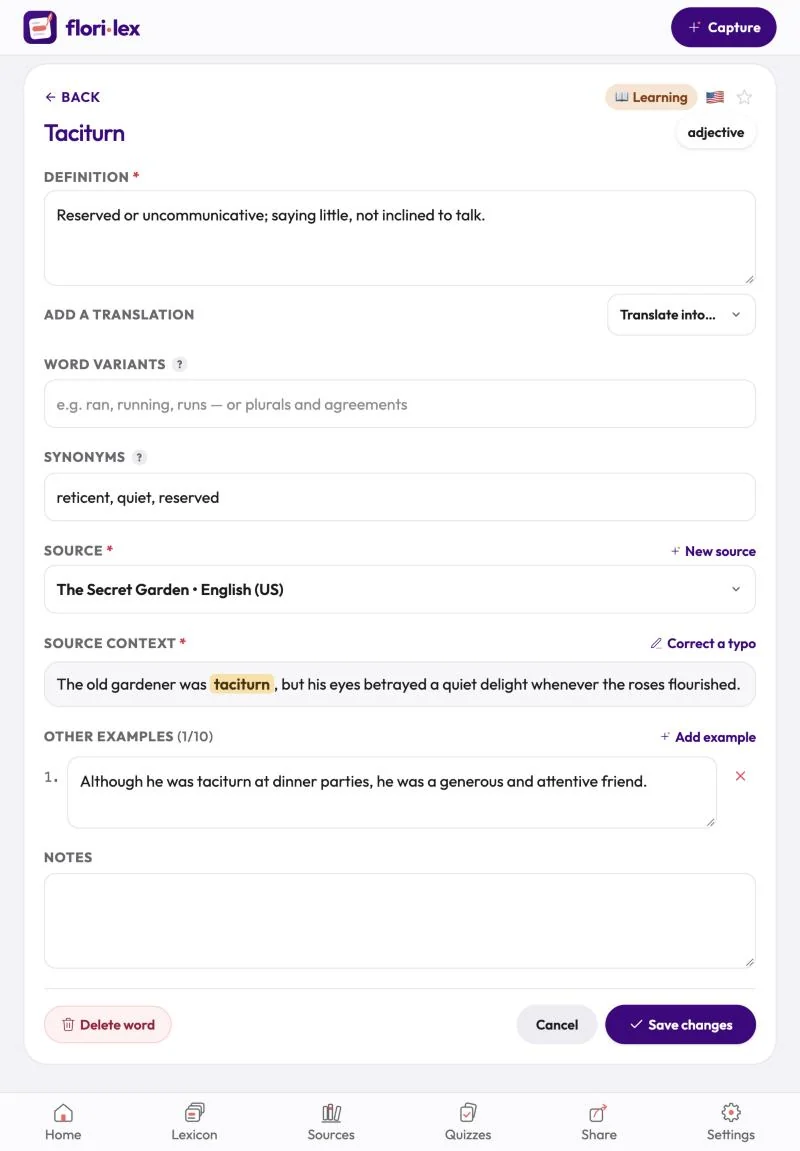
Correct a word’s details, add meanings or examples, or remove it.
- Open the word and tap Edit word.
- Change any field: definition, translation, word variants, synonyms, source, examples or notes.
- To fix a typo in your original sentence, tap Correct a typo next to Source context.
- If the word has more than one meaning, each one is listed under Senses and you can edit each one. To add a new meaning, capture a sentence that uses the word in that meaning (see Already have this word? in Capture a word): a meaning always comes with its own sentence.
- Tap Save changes, or Cancel to leave without saving.
Deleting words. A deleted word is gone for good, so Florilex always asks you to confirm:
- On the edit page: tap Delete word, then Yes, delete.
- From the Lexicon, on iPhone and iPad: swipe the word to the right and tap Delete.
- Several at once: in the Lexicon, tap Select, tap the words, then Delete. Florilex asks, for example, Delete 3 words for good?
Deleting removes the word together with its progress. To stop practicing a word without losing it, use I know this instead (see A word’s page).