Scan a printed page with your camera instead of typing the sentence.
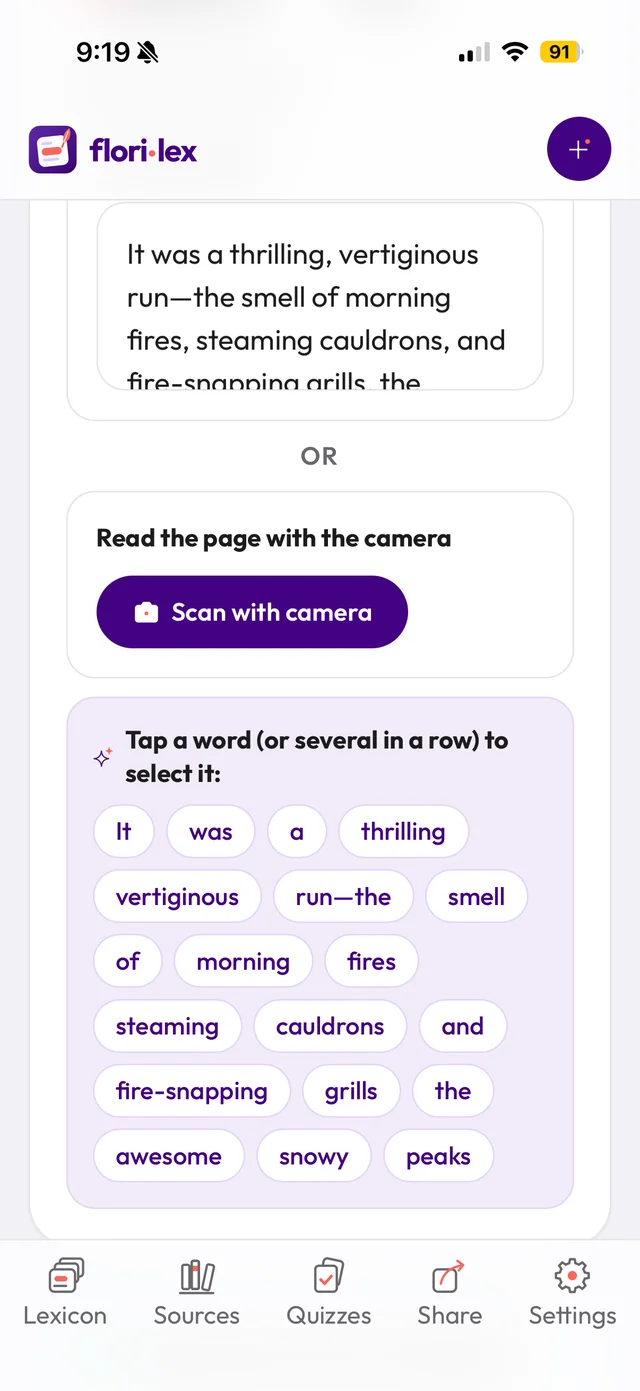
- On the Capture page, under Read the page with the camera, tap Scan with camera.
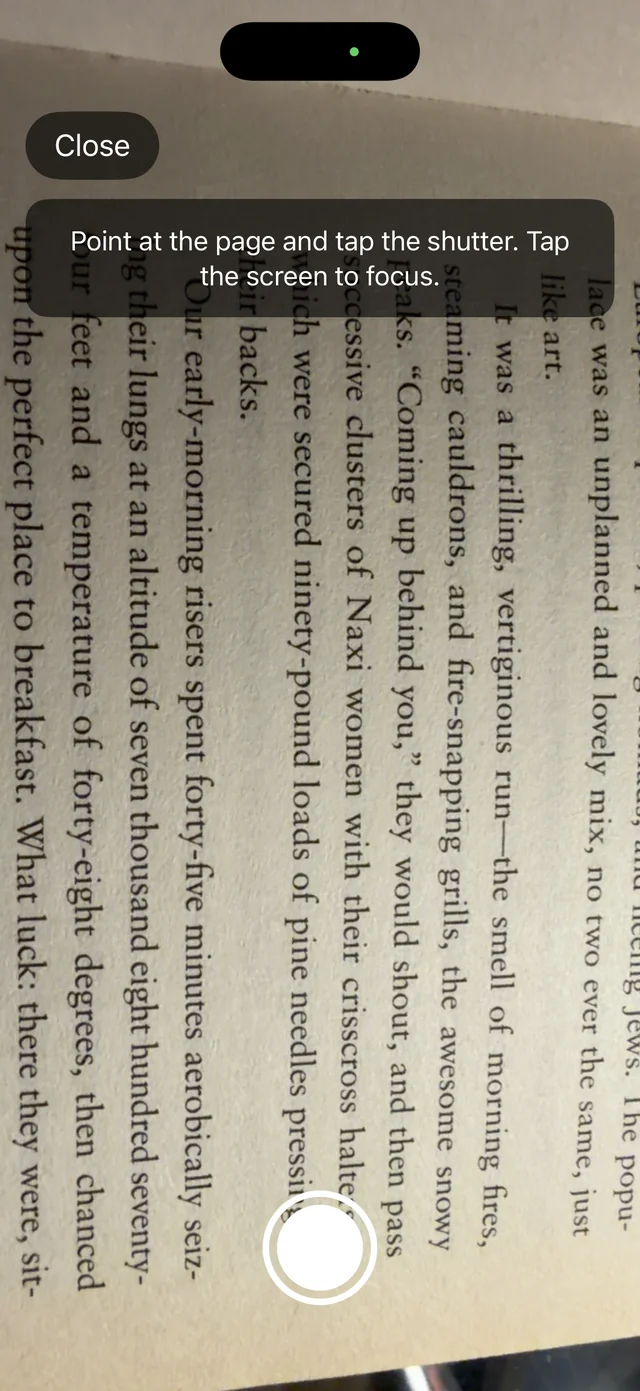
- Point your camera at the page and tap the shutter. Tap the screen first if you need to focus.
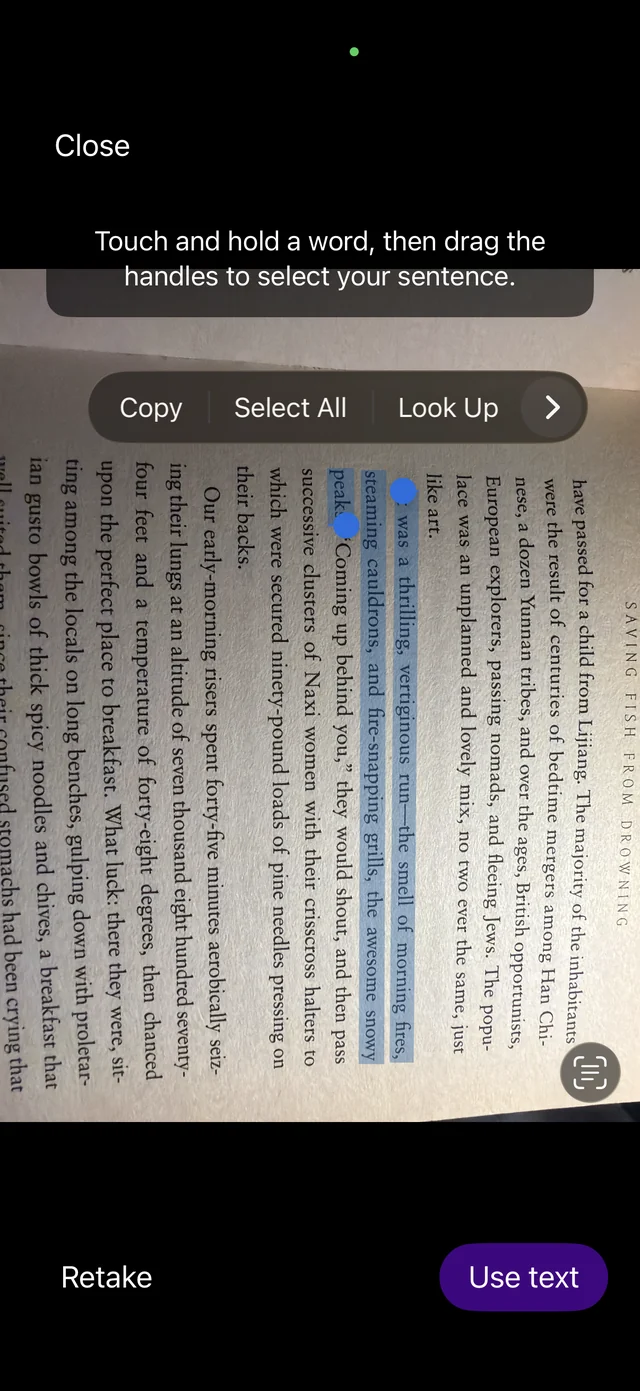
- Touch and hold a word in the picture, then drag the handles to select your sentence.
- Tap Use text. To try again, tap Retake; to stop, tap Close.
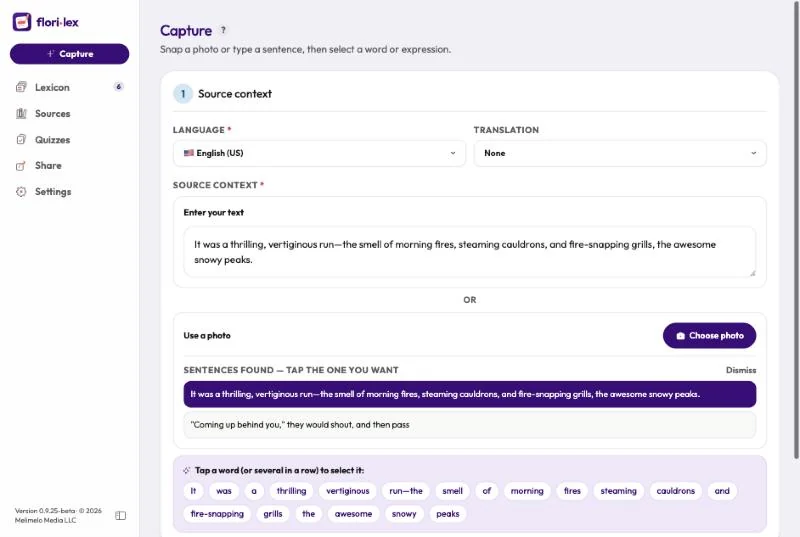
- The sentence appears in Source context, and each word turns into a button. Tap the word or expression you want, then continue as in Capture a word.
The pages don’t have to be straight: in the example, the book was photographed sideways.
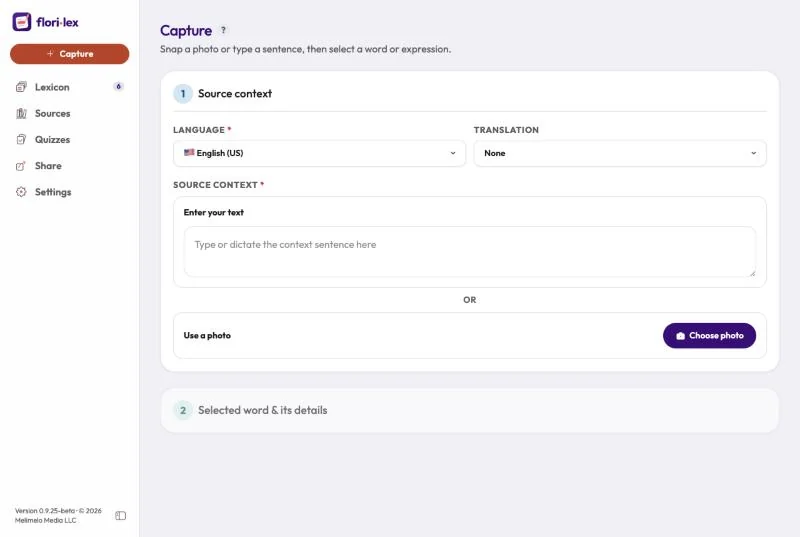
On a computer: a Mac or PC can’t use the camera, so use a photo of the page instead.
- On the Capture page, next to Use a photo, click Choose photo and pick the picture.
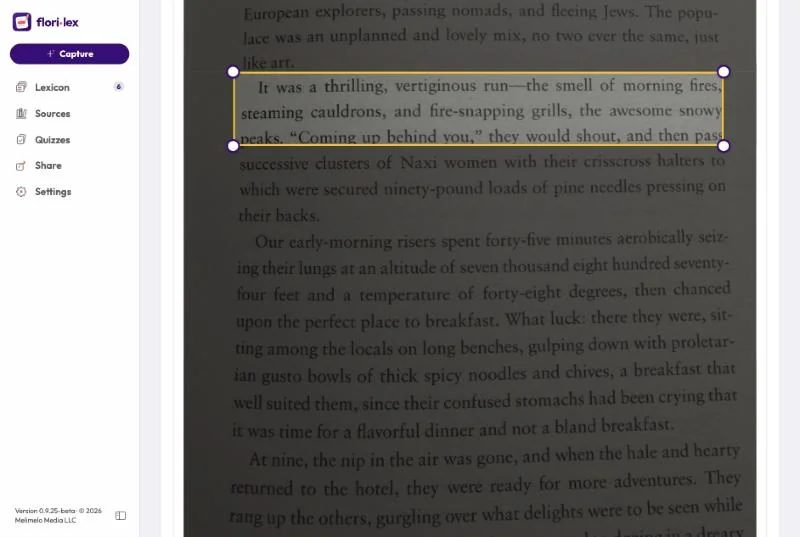
- Move the yellow box over the sentence you want: drag inside it to move it, or drag a corner to resize it. Everything outside the box is ignored.
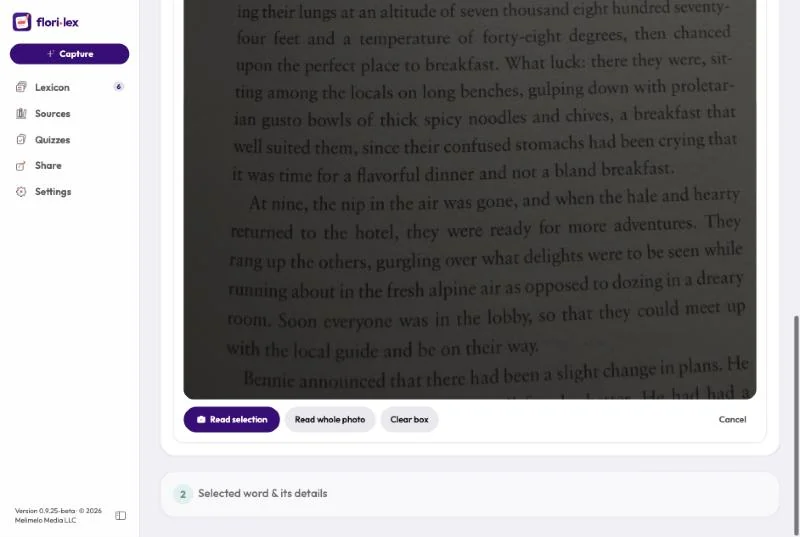
- Click Read selection. To read everything instead, click Read whole photo; to start over, click Clear box or Cancel.
- Under Sentences found, click the one you want. It goes into Source context, and each word turns into a button.
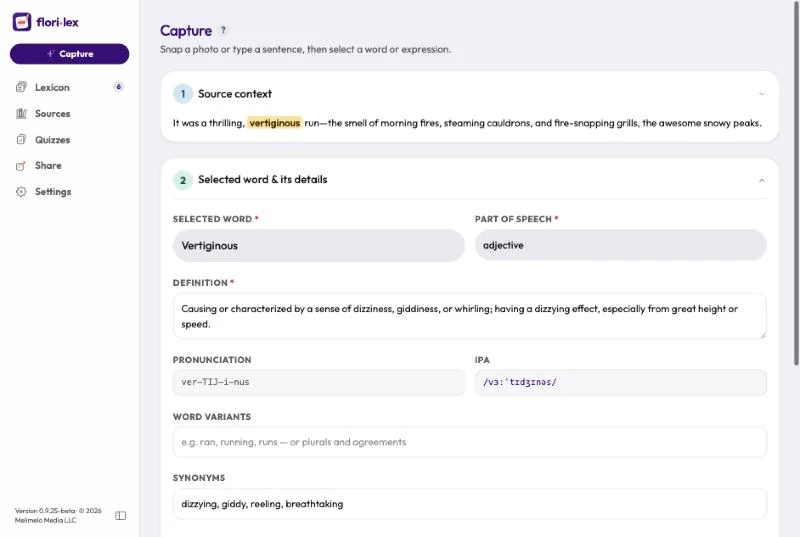
- Click the word or expression you want, then continue as in Capture a word.