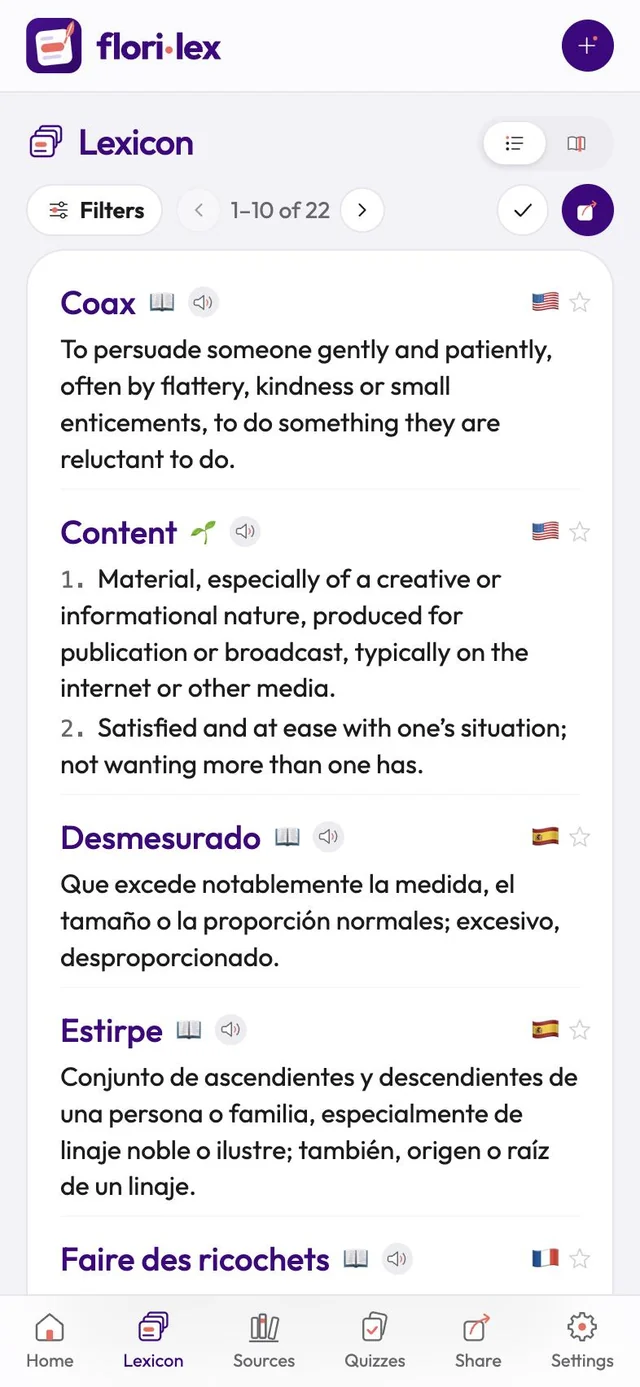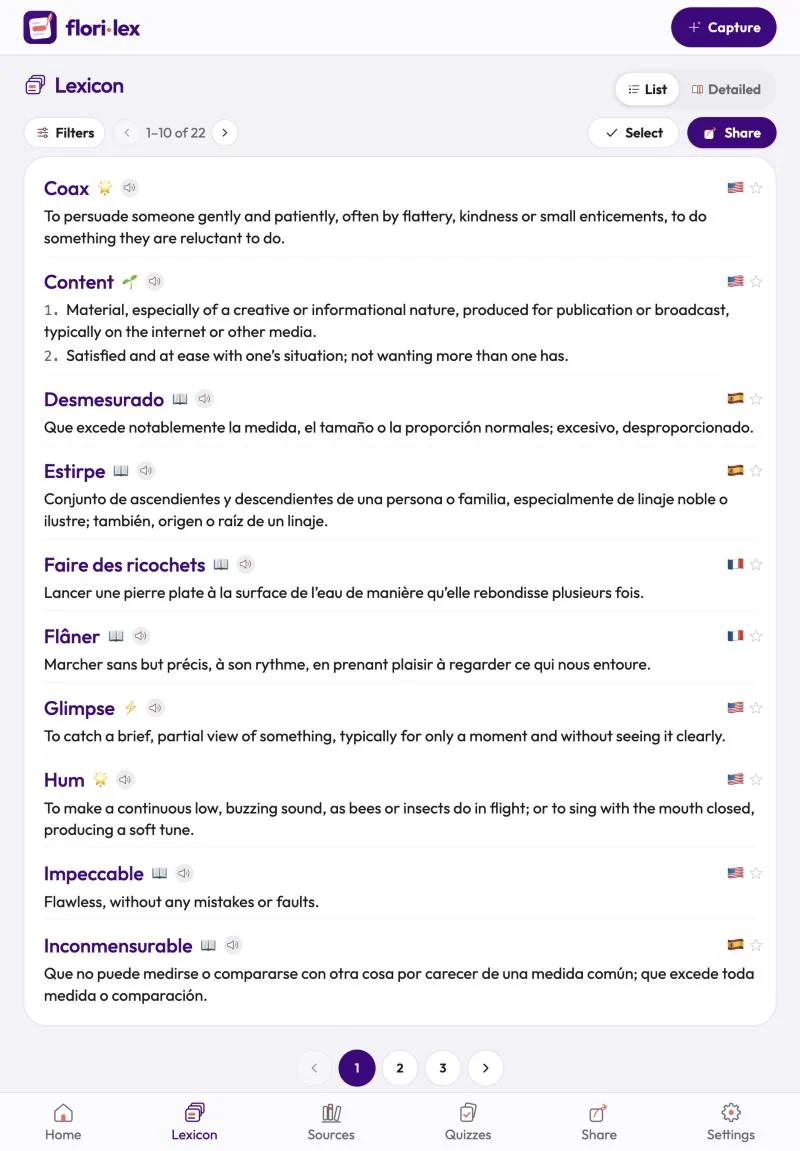
The Lexicon lists every word you’ve saved, and you can narrow it down to find any word quickly.
Tap Lexicon in the bottom bar. The counter at the top shows how many words are showing, for example 6 of 6. When they don’t all fit on one page, use the arrows next to it to move between pages. On iPhone, the buttons at the top right are icons: a check mark for Select and an arrow for Share.
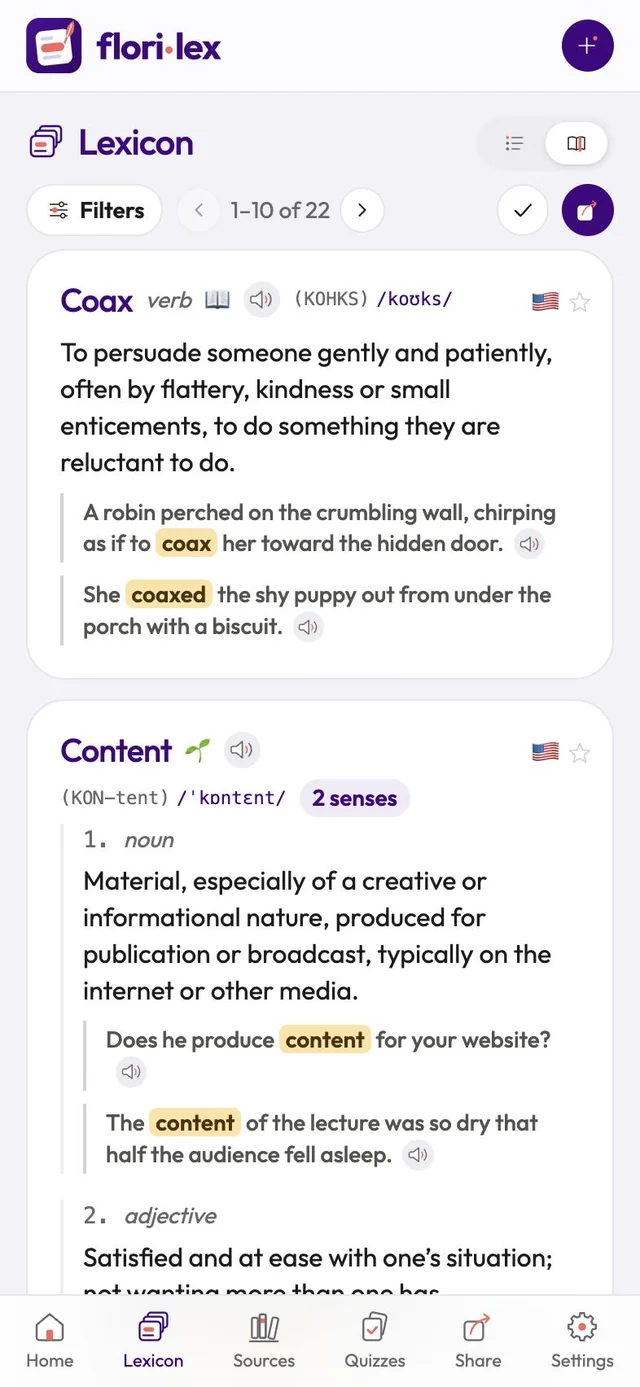
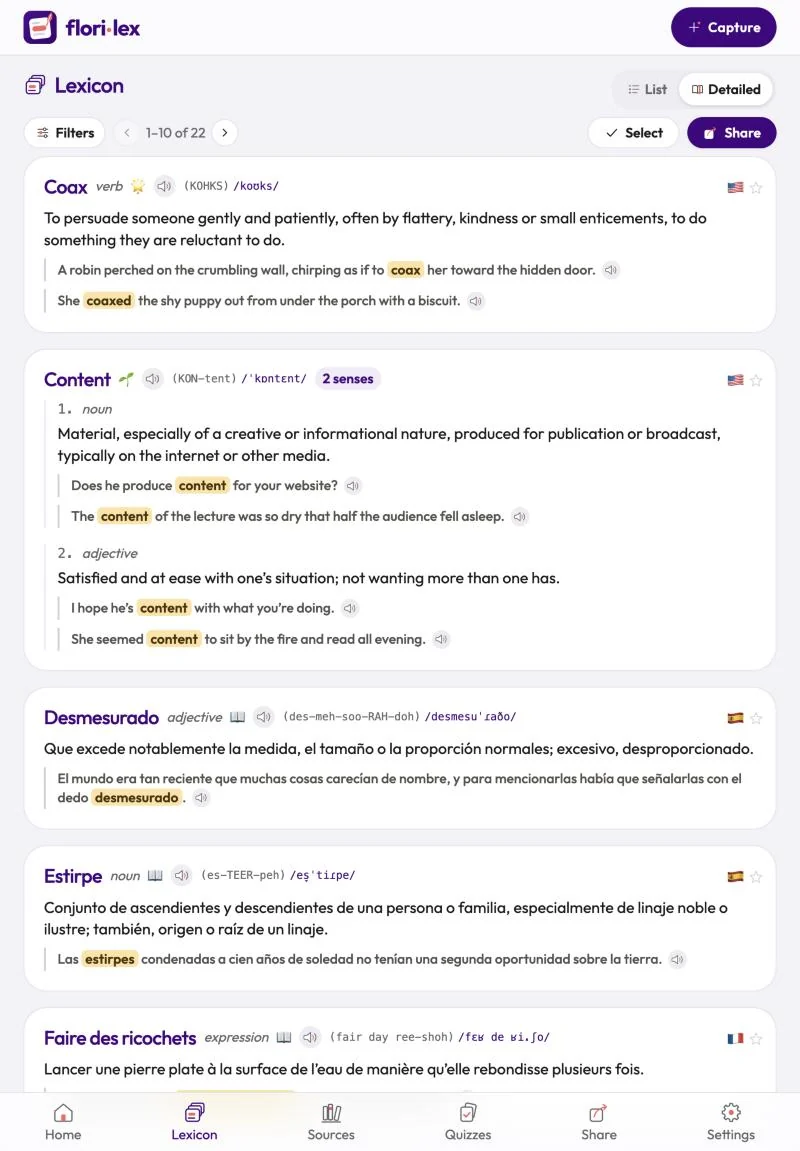
- List or Detailed: use the switch at the top right. List shows each word with its definition. Detailed adds part of speech, pronunciation and your example sentences, with the word highlighted.
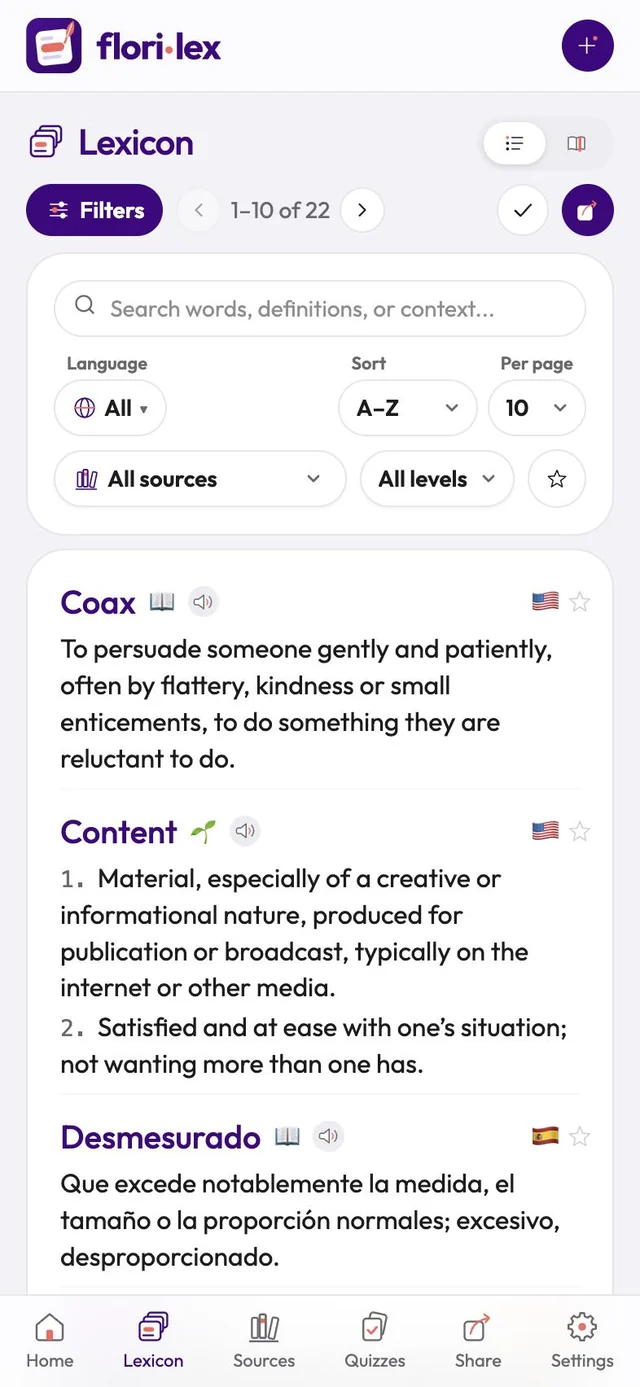
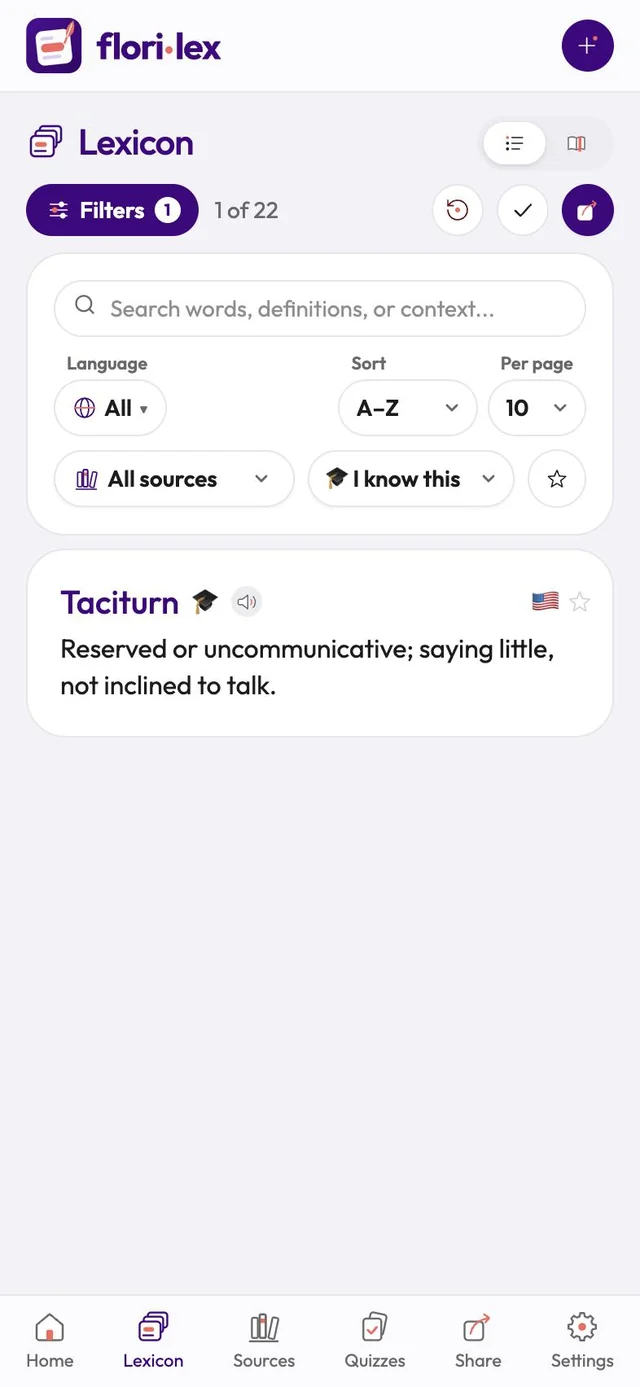
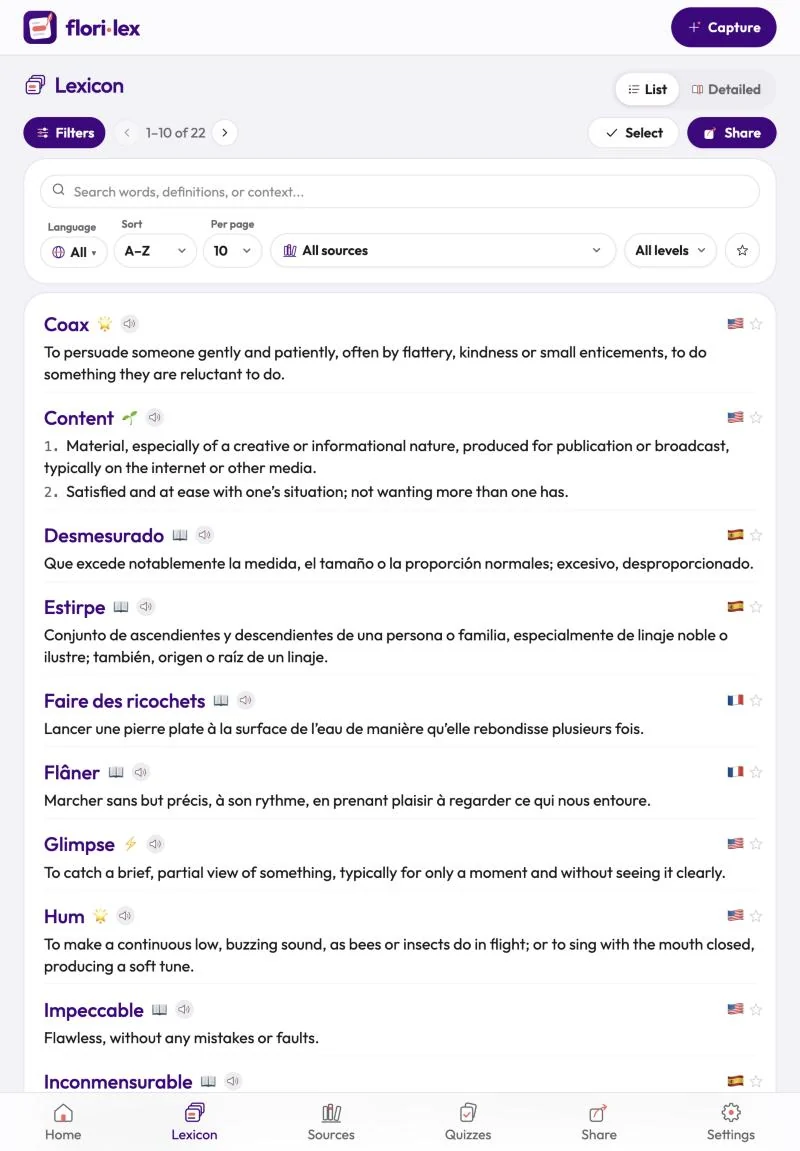
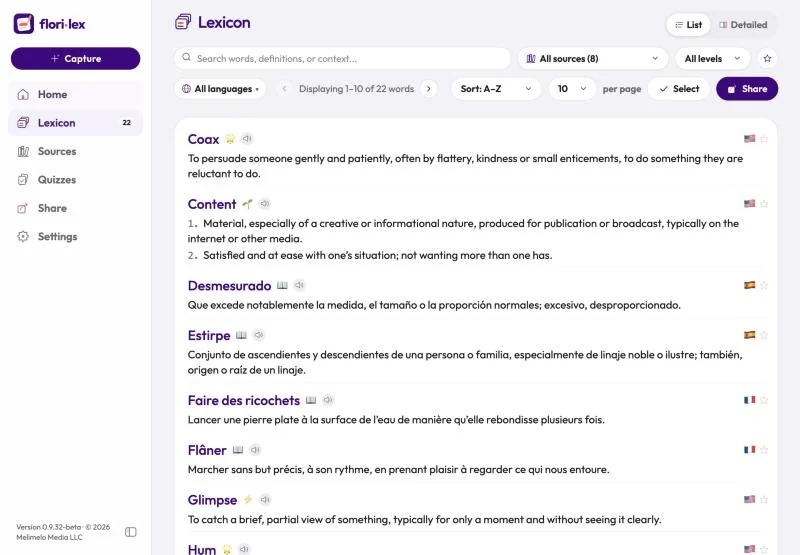
- Filters: tap Filters to search words, definitions and sentences, and to choose a language, a source, a mastery level (including I know this), only starred words, a sort order (A–Z, Z–A, Newest) and how many words per page. On a computer, the filters are always showing. To clear them, tap the round arrow button that appears next to the word count.
- Star a word with the star on its right to find it again easily.
- Hear a word with the speaker button next to it.
- Mastery level: the small icon after each word shows its level: a sprout for New, a book for Learning, a lightning bolt for Familiar, and a star for Mastered. A graduation cap marks a word you’ve set to I know this.
- Swipe a word (iPhone and iPad): swipe it to the left for View, Edit and Share, or to the right for Delete.
- Select several words: tap Select, then tap the words you want, or Select all. You can then Share them together or Delete them. Tap Done when you’ve finished.
- Share sends the words currently showing to a friend (see Share words).