Save a sentence from a web page straight to Florilex, without copying and pasting.
iPhone and iPad, in Safari (works best):
- Select the sentence.
- Tap Share in Safari’s toolbar, not in the small menu that pops up over your selection.
- Choose Florilex.
- Florilex opens on Capture with the sentence, the site as a Website source and the page address in the notes. Tap the word you want.
iPhone and iPad, in Chrome or Firefox: these browsers can’t hand over your selection together with the page, so it takes one extra step.
- Select the sentence and tap Copy.
- Tap the browser’s own Share, in its toolbar or its … menu, and choose Florilex.
- Florilex opens on Capture with the site as the source and the address in the notes. Paste the sentence into Source context, then tap the word.
Using Share in the small menu over your selection also works, but it brings only the sentence: the source stays Other and the notes stay empty.
Computer, in Chrome, Edge or Brave:
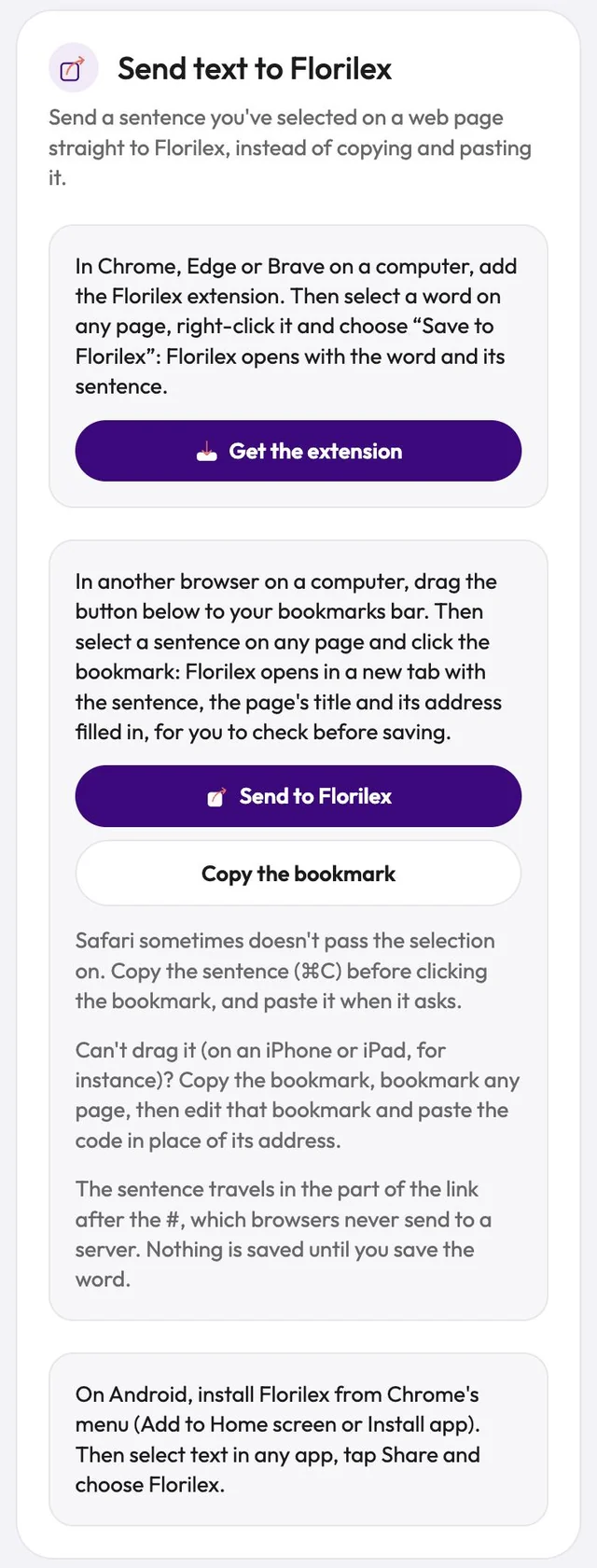
- Install Save to Florilex from the Chrome Web Store. You can also tap Get the extension in Settings › Preferences › Send text to Florilex.
- Select a word or short expression on any page.
- Right-click it and choose Save to Florilex, or click the Florilex button in the toolbar.
- Florilex opens on Capture with the word and its sentence.
To keep the button handy, pin it from the puzzle-piece menu. To give it a keyboard shortcut, go to chrome://extensions/shortcuts.
Mac, in Safari:
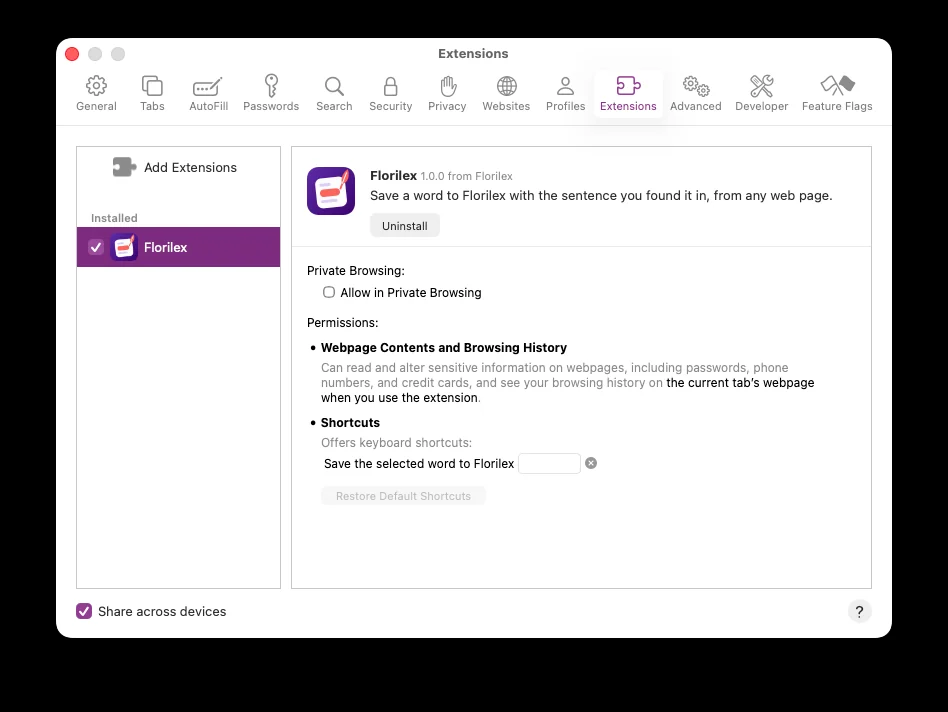
- The extension comes with the Florilex Mac app. Turn it on once: open Safari › Settings › Extensions and tick Florilex. To use it in private windows too, tick Allow in Private Browsing.
- Select a word, then right-click and choose Save to Florilex, or click the Florilex button in the toolbar.
You can also set a keyboard shortcut for Save the selected word to Florilex in the same Settings pane.
Computer, in Firefox: the same extension and steps are coming, once Mozilla approves it.
Android: install Florilex from Chrome’s menu (Add to Home screen or Install app). Then select text in any app, tap Share and choose Florilex.
Other browsers on a computer: use the Florilex bookmark.
- Go to Settings › Preferences › Send text to Florilex and drag the Send to Florilex button to your bookmarks bar.
- Select a sentence on any page and click the bookmark.
- Florilex opens in a new tab with the sentence, the page’s title and its address filled in, for you to check before saving.
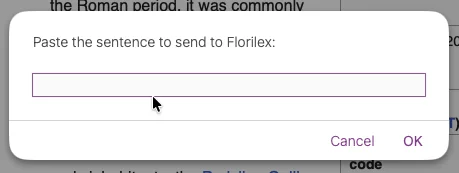
In Safari, the bookmark can’t read your selection. Copy the sentence first, then click the bookmark. When the box Paste the sentence to send to Florilex appears, paste the sentence and click OK.
Can’t drag it? Tap Copy the bookmark, bookmark any page, then edit that bookmark and paste the code in place of its address. The sentence travels in the part of the link after the #, which browsers never send to a server, and nothing is saved until you save the word.
Privacy: nothing is sent anywhere except to Florilex itself, and your words stay on your device.